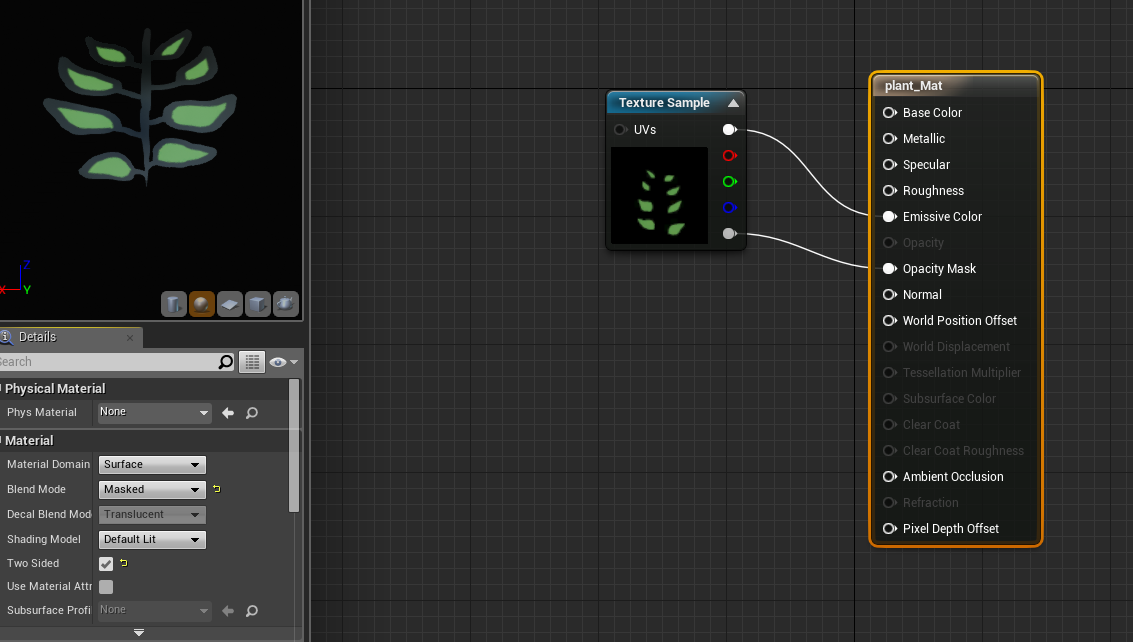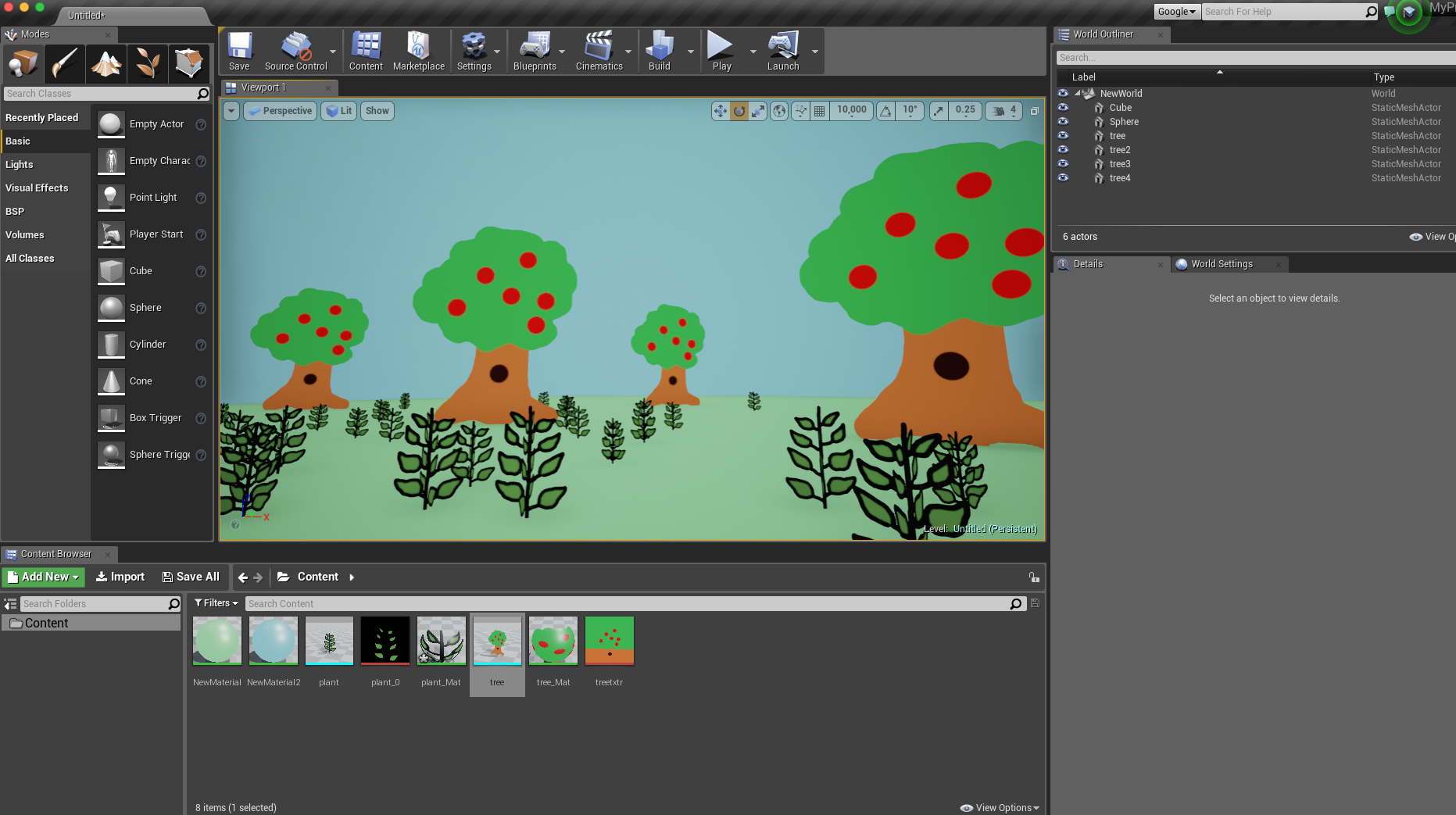
Here I’m making a very simple forest using transparent png files from photoshop. First I drew the files in Photoshop with a transparent background. You can use these terrible drawings as examples if you’d like.

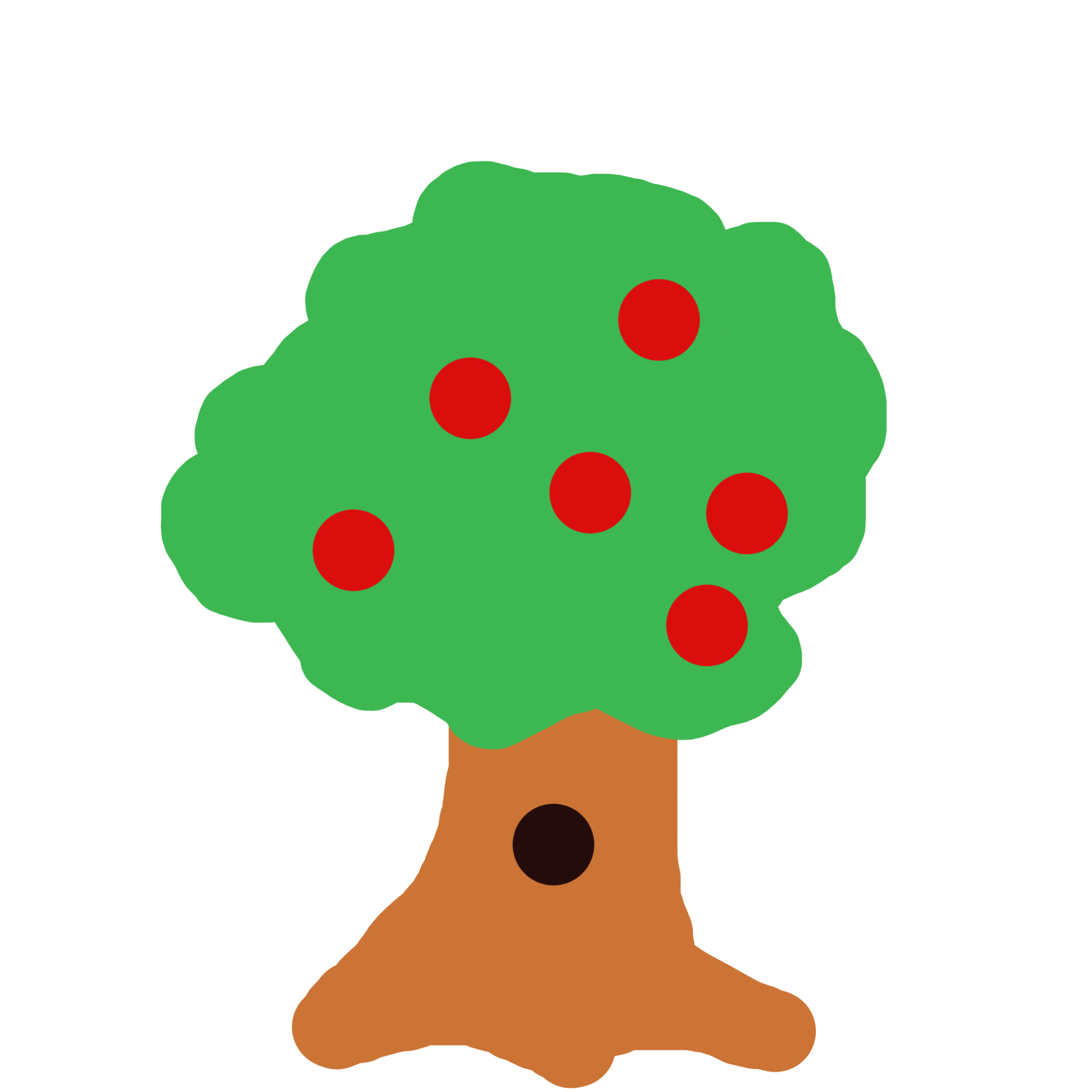
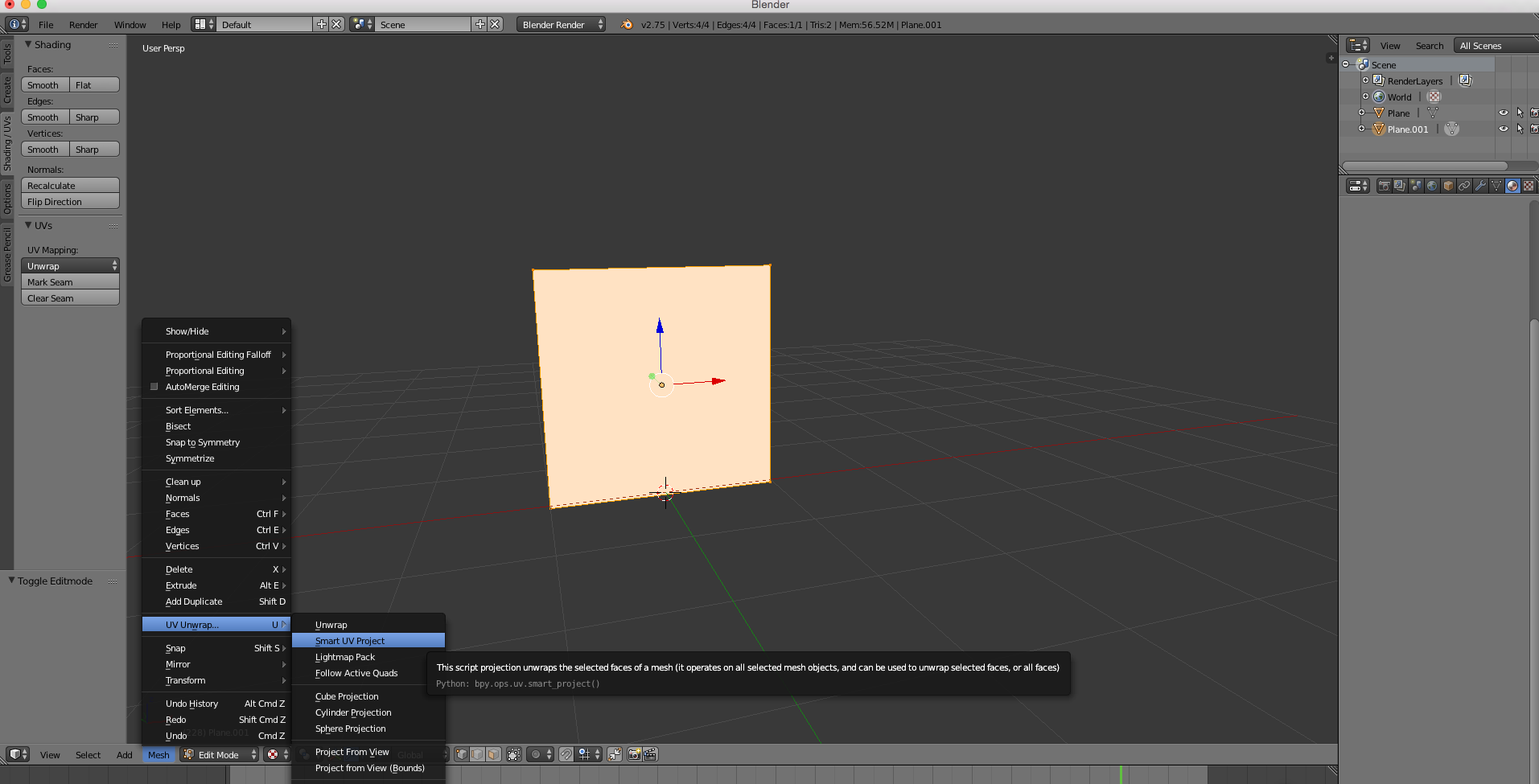
For the tree (for the plant, see video) I went into Blender and just made a simple Plane under the “Create” tab on the far left. I rotated it twice by doing “r” “x” “90” click and then “r” “y” “90” click. This made it facing upright. Then In the tab in the bottom I went from Object Mode to Edit mode and then went into Mesh, UV Unwrap, Smart UV Project. This gives Unreal a map to apply the texture to.

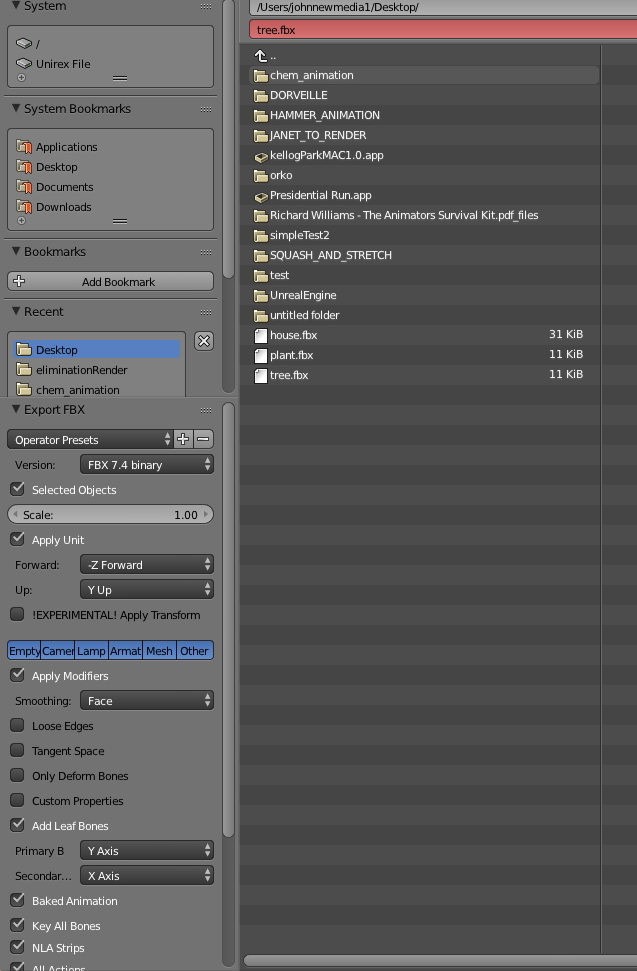
Then I exported the plane as an .fbx file. In the export settings I ticked “Selected Objects” (in case you have any extra things in your scene it will only export what you have highlighted) and I also changed Smoothing from Normal to Face. This will just prevent Unreal from giving us a small shading error. Other than those two things I left it all as is.
I imported both the fbx and the png into Unreal.

Here is how to setup the material. With the box on the right selected, change Blend mode to “Masked” and also tick on “Two Sided.” Then connect the top node to Emissive Color and the bottom node to “Opacity Mask.” Then you apply your materials to whatever .fbx you imported.